How do I keep track of assets
This article will demonstrate how you can keep track of assets.
Access the Assets menu item in the Physical Resources section of Resources:
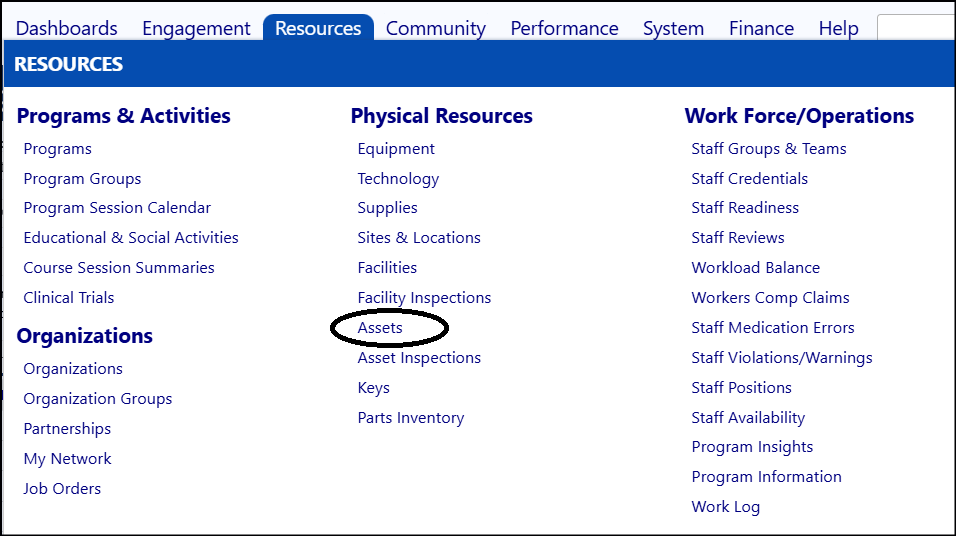
- Click New Asset to add an asset.
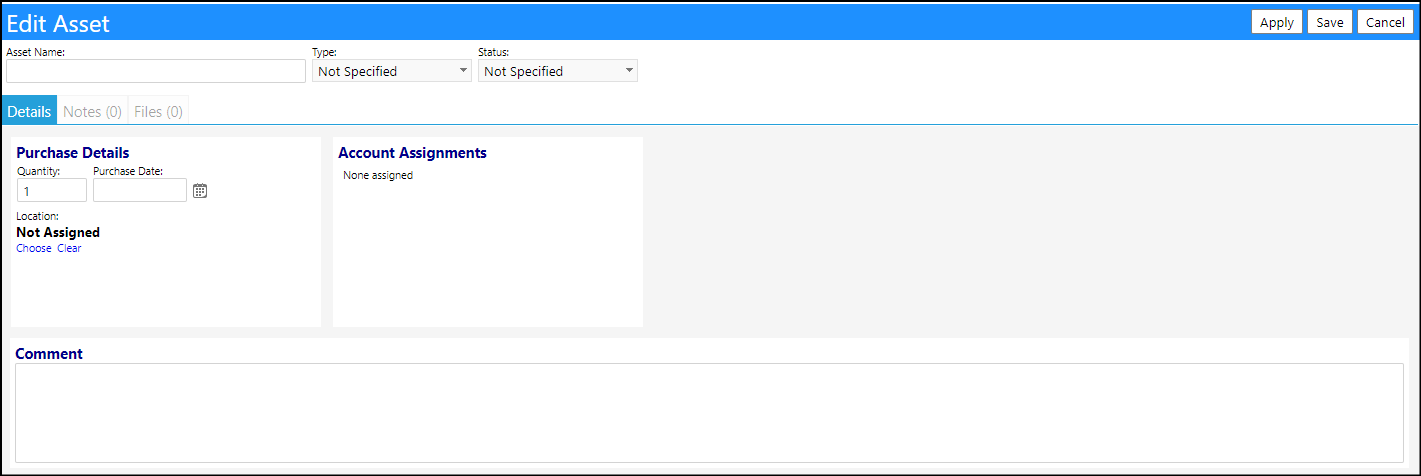
- Enter the Asset Name.
- Select the asset Type from the drop-down list.
- Select the asset Status from the drop-down list.
NOTE: The Lookup Lists of available asset Types and Statuses are user configurable.
NOTE: The display of the panels will change, depending on the asset Type selected.
- Click Apply to save your entries or changes.
- Enter any Details desired, including quantity, location, purchase date, account assignments (i.e., who the asset was assigned to), or comments.
Tip: The more details entered, the more information and valuable the asset listing is.
- Click Apply to save your entries or changes.
- Enter any Notes and attach anyFiles desired by clicking on those tabs and clicking on the '+' sign. Conversely, delete any notes or files by selecting that note or file and clicking on the '-' sign.
- Click Save to save all of your entries.
