How do I access the school portal
This article will tell you how to log in and access the school portal.
NOTE: For this document, we will assume the appropriate Account Role has already been established.
First Time Logging In:
Because we only want specific users to be able to view the School Portal, before you can gain access, you will need to be set-up in the system:
- Launch the application by accessing your imPowr website.
Note: Your Continual Care account manager will provide you with the link for you to use and an initial Account ID. It is a good idea to save the link for future use. The way you do that varies by browser. In Chrome you can just click the ‘bookmarks’ star ( ) that appears at the upper left of the browser window.
- When the login screen appears…
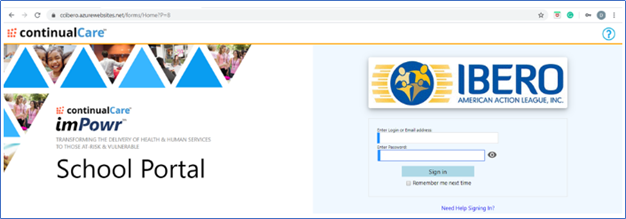
- Enter the Account ID you were provided with.
- Enter an initial password (at this step, you can enter any characters – these can be changed later)
Note: To see what you entered, you can click the little “eye” icon next to the password entry field.
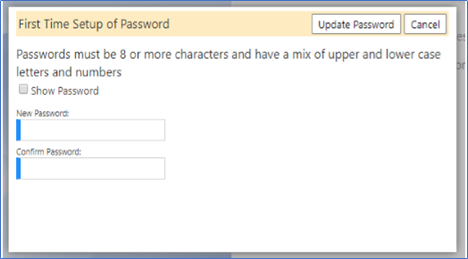
- The system will prompt for a new password.
Note: Make sure you enter a ‘strong’ password (something hard to guess). Certain common words will be explicitly not allowed (like ‘1234’ or ‘password’), so enter something with a mix of upper- and lower-case letters, numbers and characters. When done, click ‘Update Password’.
- Re-enter your ID and password and Click ‘Sign In’
After a successful login, you will be directed to your affiliated school dashboard screen. The school portal dashboard displays student lists, metrics, and charts.
If you are affiliated with multiple schools, select which school you would like to view from the drop down.
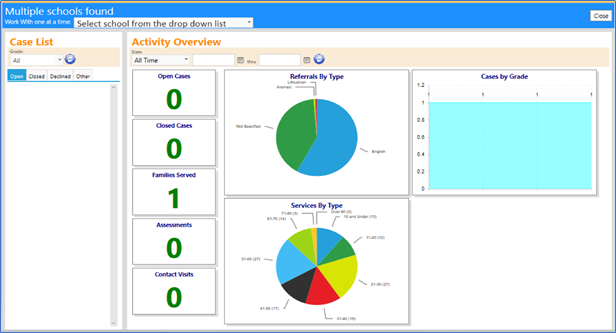
Clicking on the Case List tabs (Open, Closed, Declined, and Other) will show you the names of the students associated with that status.
Note: the number next to their name indicates the class grade the student is in.
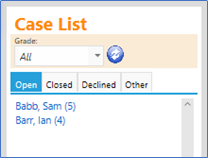
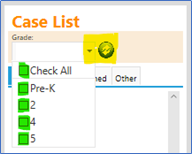
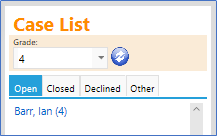
To filter the students by grade, select the desired Grade(s) from the Grade drop down list and click on the double arrows to refresh that screen. This will result in only displaying students in that grade.
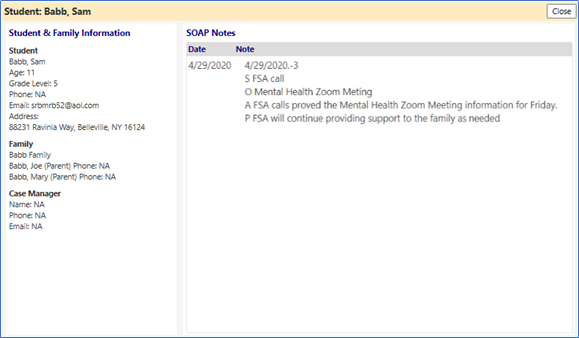
Clicking on a student’s name will provide you with details about that student: