How do I set-up the Intake Prescreen Notification Process
This article will tell you how to set up auto-notifications which are sent based on answers provided from client intake prescreen questions.
Overview
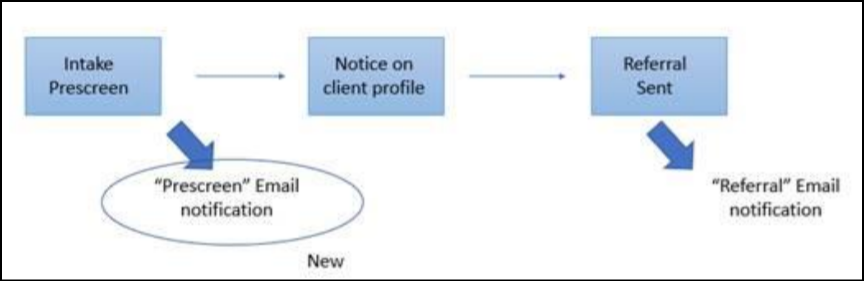
The intake prescreen process has been updated to send email alerts immediately as well as after a referral is generated.
Previously, a department contact could be auto-notified upon referral (and the record would appear on the inbound referral list on their dashboard). With the new process, when a person performs an intake and answers a few questions, another Division can be auto-notified via email immediately and not even have to wait until (or if) and official referral is created.
Configuration
Configuration has three parts described below.
1.) Identify the Division Primary Contact Person
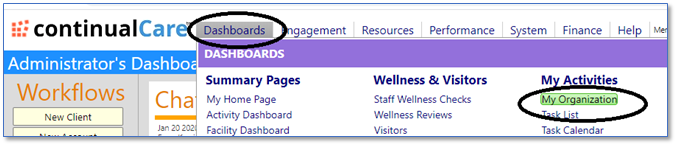
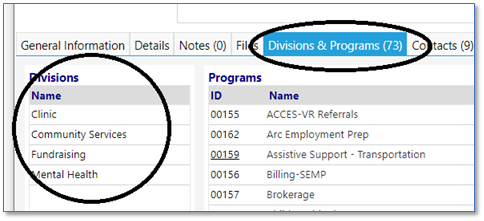
This setup involves creating the division and making sure the division Primary Contact Person is identified and that they have a valid email address. The Division setup is available on the “My Organization” page callable from the main menu or the Organization list.
2.) Set up the intake form prescreen questions
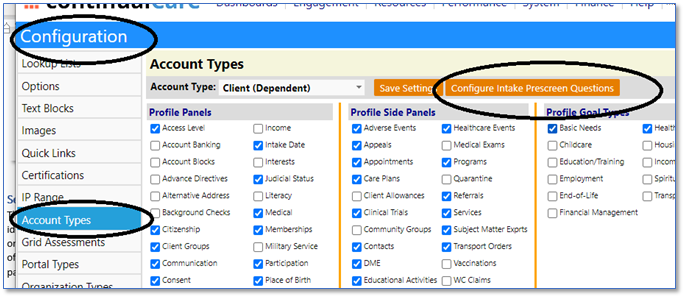
This setup involves creating some basic and quick prescreen questions and “business logic” rules to identify which divisions to notify based on how the person answers the questions. More than one division could be notified. The intake form questions can vary by account type, (i.e. one set of questions for children, another for adults or families) so those are set on the Configuration page, Account Type tab.
3.) Choosing at what point, if any, you want the Divisions to be auto-notified
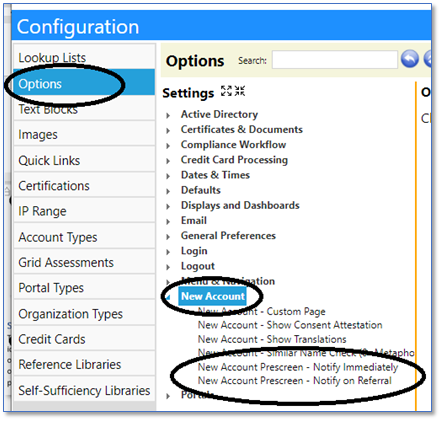
You can always send the notification manually – but if you want to send it automatically you must set the system to notify immediately after the prescreen, or notify once the decision is made to create an official referral, or both. The notification options are set globally on the Configuration page in the Options-“New Account” section.
Performing a Prescreen
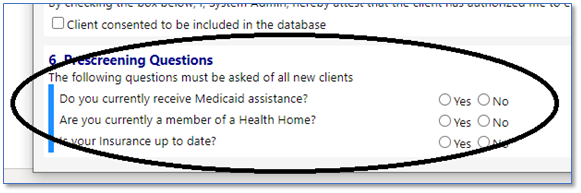
When the intake form appears, any prescreen questions will show at the bottom. Answer the questions with yes-and-no answers and based on how the rules were setup, the system will decide which divisions are candidates based on the prescreen answers.
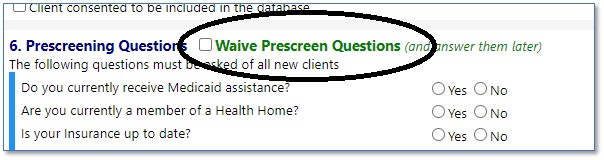
NOTE: Users have the ability to waive Prescreen Questions and answer them later (the ability to waive these is dependent upon the user’s Account Role privileges). This will be used for cases where the intake person is unable to immediately get all the information needed for referrals (for example, someone just left a phone message about enrolling in something rather than a full intake interview). In that case the intake person can ‘waive’ answering all the questions and then come back to it later to complete the referral portion of the intake process.
To waive the prescreen questions, click the Waive Prescreen Questions checkbox during your intake process.
If the questions are waived, then on the account details screen, an indicator noting Prescreen Waived is displayed.
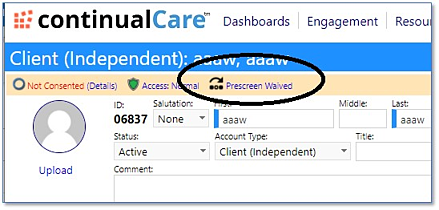
To re-prescreen, click the words “Prescreen waiver” and you get a new screen that shows the waiver details and lets you re-complete the prescreen.
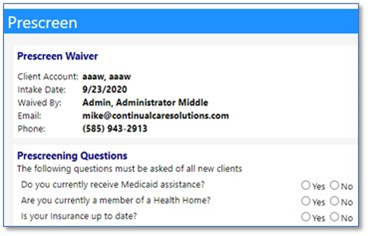
Users can run a report of waived prescreens that you can run to see any “backlog” of ones needing prescreen.
Notifications
First Auto-Notification Opportunity
If the system has been set up to immediately notify after prescreening, the notification emails to the division contacts will be sent now.
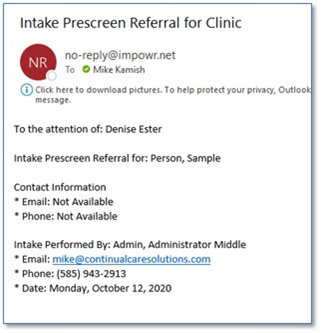
This is intended as an “early warning” for the division contact so that even if the intake is not completed until later, the contact still can be on the lookout. There is an option to turn this on or off.
Viewing the Results
When the new account screen appears, any division recommendations based on the prescreen appear at the top of the page. In this example there are two.
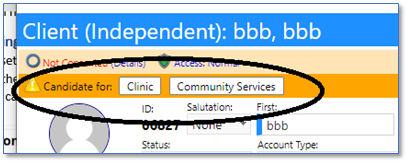
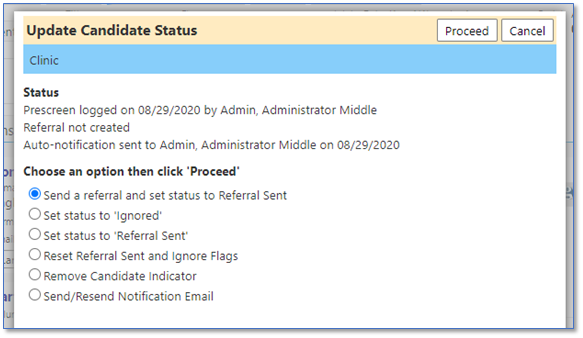
Clicking on the names will bring up information about the recommendation and several options for what to do next.
Second Auto-Notification Opportunity
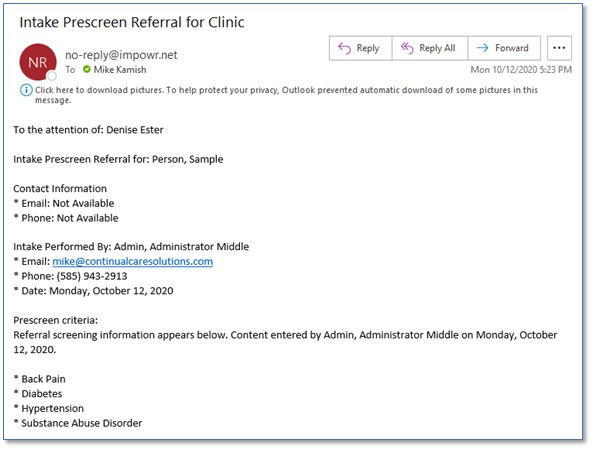
If the user chooses to convert the candidacy into an actual referral, they click the option to ‘send referral’. This will create a referral record AND if the system is set to auto-notify when the referral is created, then the auto- notification email will be sent to the division contact.
The email will include the selected diagnosis codes. There is an option to turn this on or off.
Manually Initiated Notification
At any time, a user may manually send or resend the notification email by choosing the send/resend option on the list.
Quick Refer Option
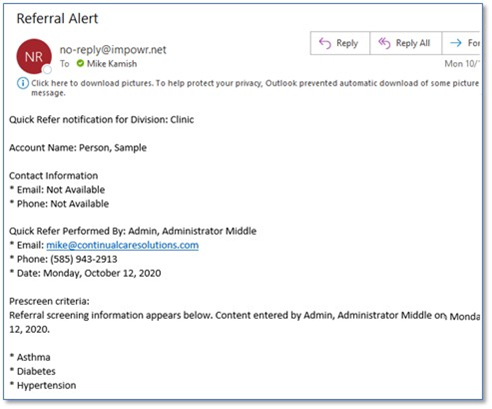
If the user bypasses the prescreen “suggestion” on the orange bar and instead uses the “Quick Refer” option, this triggers an email to the division contact as well.
That email has been updated to include the prescreen criteria that was selected.