How can I add client care resources to a client profile
This article will explain a quick and simple way to add client care resources to a client profile.
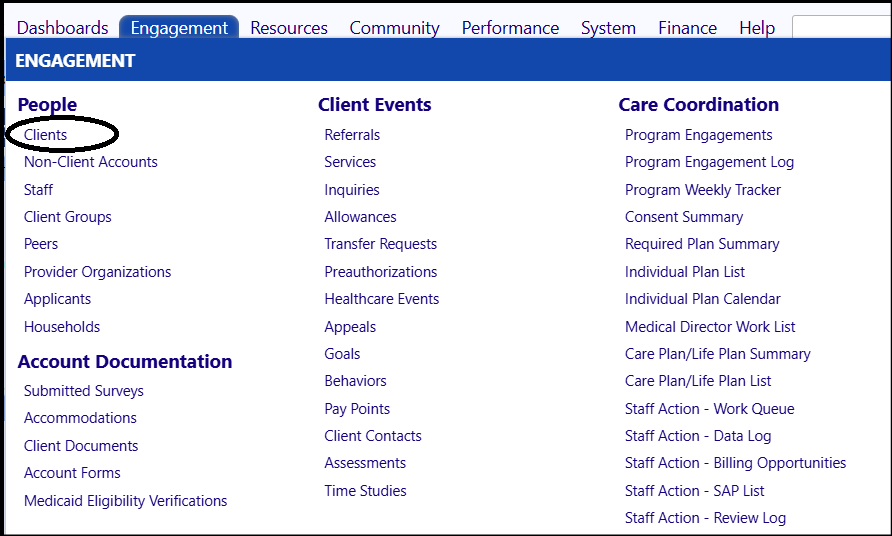
To select a client, access the Engagement menu item and go to thePeople section.
- Select Clients.
The list of Clients will open.
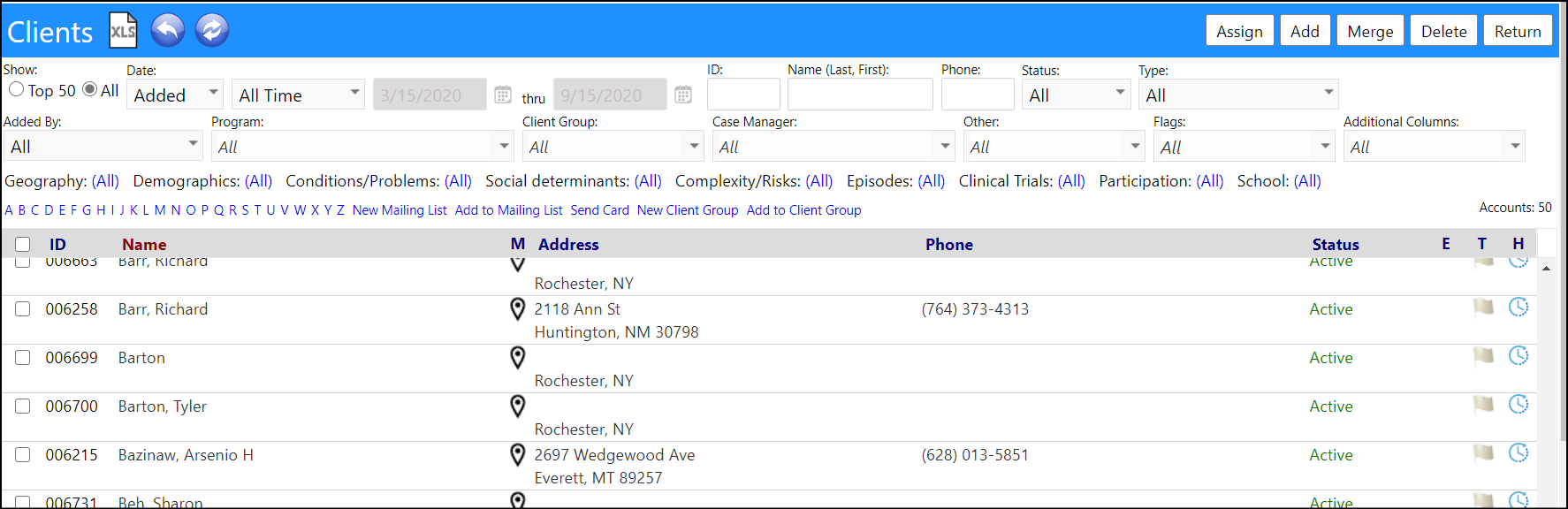
- Select the client by clicking on their ID.
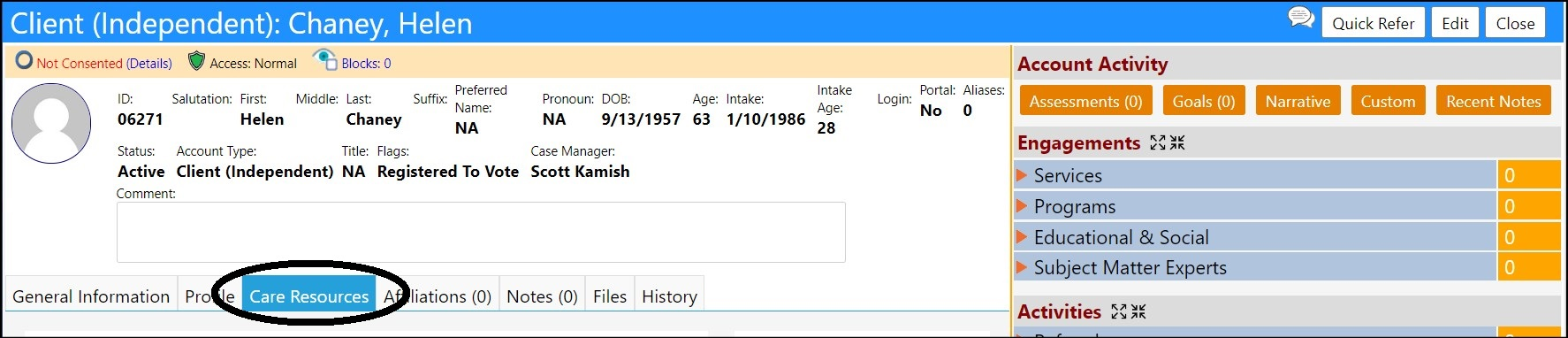
- This will open the Client Profile.
- Select the Care Resources tab.
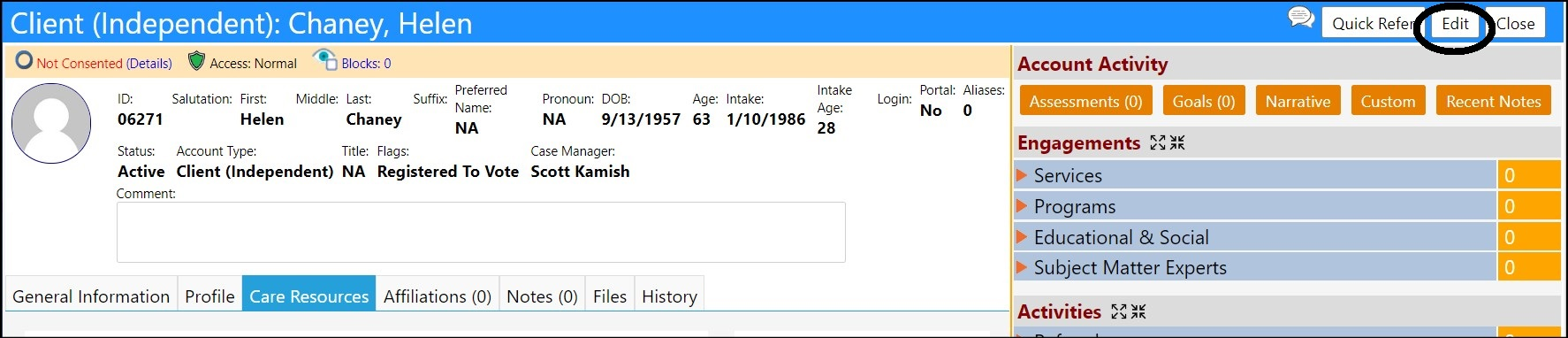
- Click Edit.
-
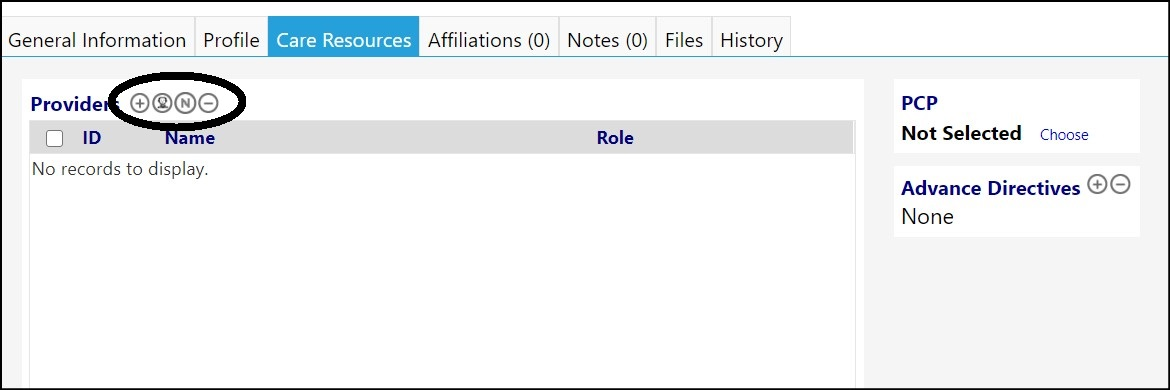
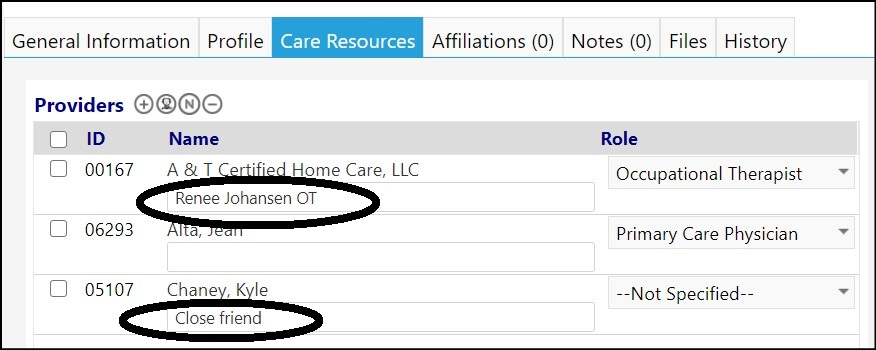
In the Providerspanel in the Care Resources tab, you can enter either an Organizational provider or an Account (Individual) provider.
- Click on the + sign to add an Organizational provider from the list of existing Organizations.
- Click on the
 button to add an Account provider from the list of existing accounts.
-
Click on the N to add a New Account provider (this will add the account to the Providers panel and will also create an account for them).
- Choose either the Organization or the Account and click Save.
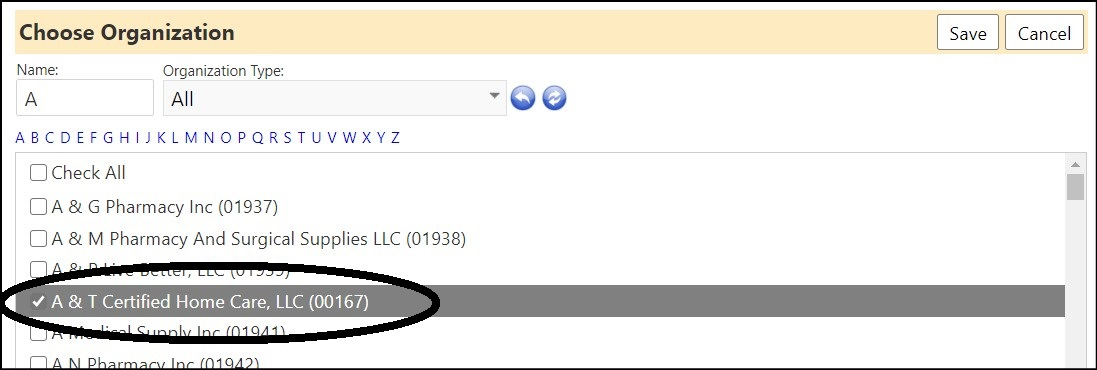
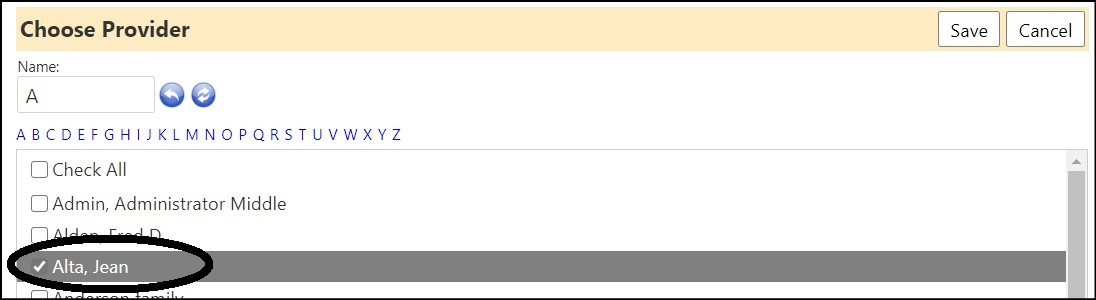
- Repeat as needed.
- Once the Organization or Account provider is selected, choose their Role from the drop down list of available roles.
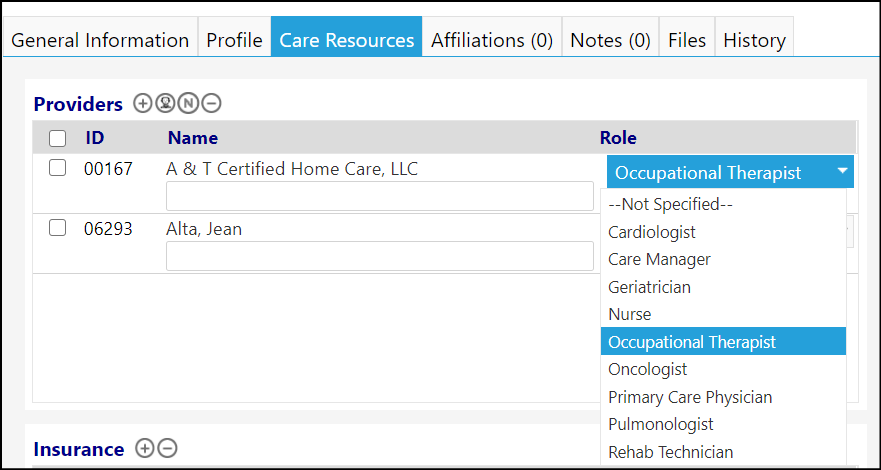
- Fill in additional information in the free text fields below the provider name, if desired.
- Click Save, to save the updates made to the Client profile.