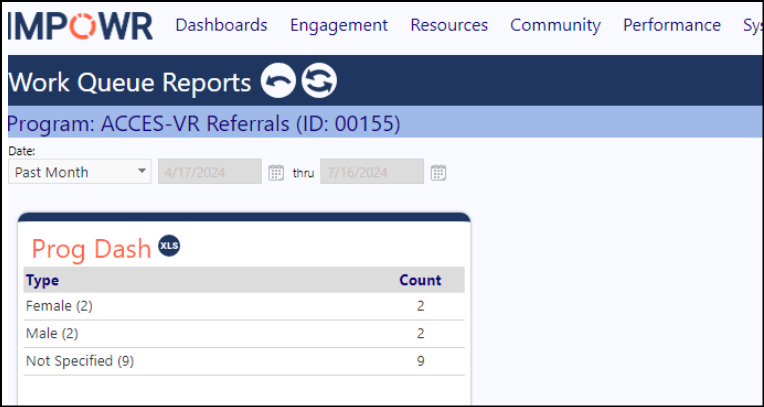
How do I create a dashboard report for my Staff Action - Work Queue
To create a dashboard that will display when you click on the "Reports" icon, on the Staff Action Work Queue, please do the following:
Step 1: When setting up a program dashboard, set up a tab called "workqueue" (not case sensitive - but do not add spaces).
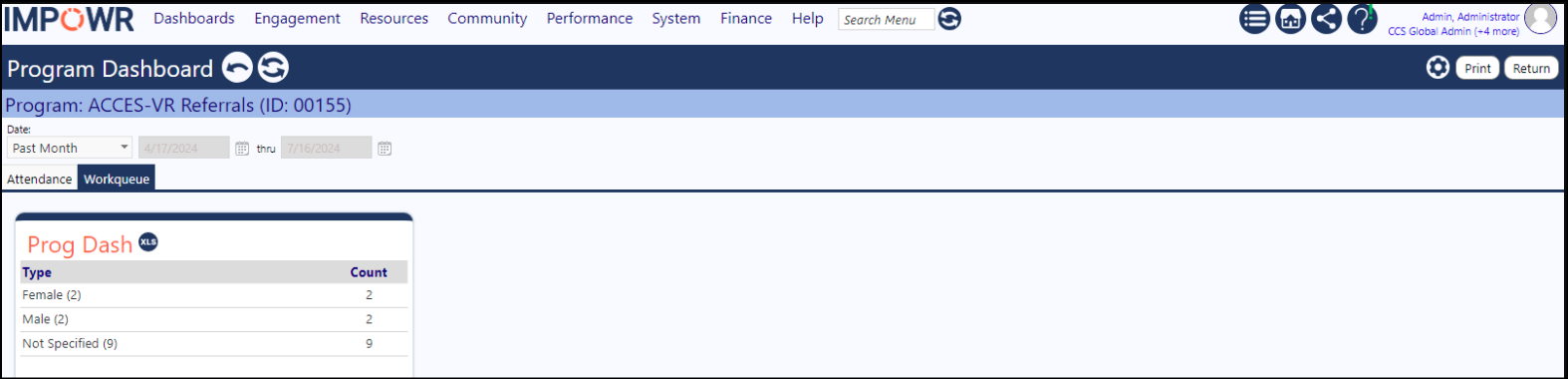
Steps to create a Program Dashboard Tab
- Go into Programs (Resources > Programs & Activities > Programs)
- Select your Program by clicking on its ID
- Click on the Dashboard/Reports icon
- Click on the Edit Layout icon
- In the Dashboard Settings panel, click the Options drop-down and select Configure Tabs
- Click New Dashboard Tab
- Enter a Name and an optional Sort Order
- Click Save
- Click Return
- Close the Dashboard Settings panel
- Click Return
- Close the Program
Step 2: In the Staff Action - Work Queue, when you click the Report icon, you get the 'Workqueue' dashboard contents: