How can I track client and staff member vaccinations
This article will explain how you can track and report on vaccines for both clients and staff members.
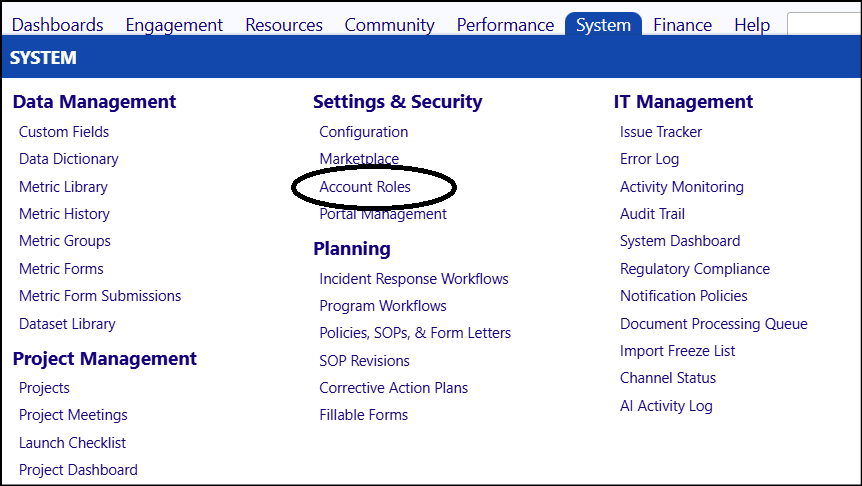
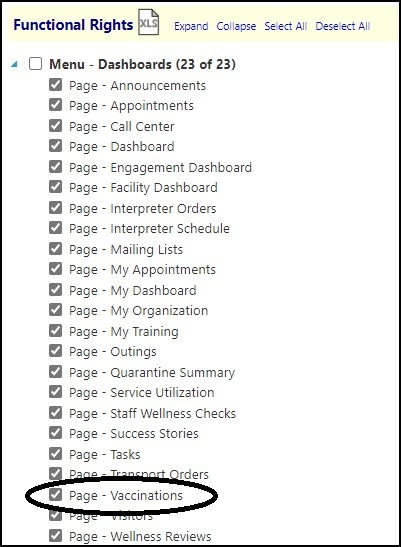
The following article assumes the user has the appropriate Account Role permissions set up granting them access to the Vaccinations Page.
Access to the Vaccination Page is provided in the Menu - Dashboards section of the Account Role Functional Rights.
Any time a person interacts with others, they are at risk for exposure to infection and diseases. Its important for all Staff Members and Clients to stay current with their vaccines - to reduce their chances of getting sick, as well to protect the safety of others. If the Staff or Clients are in a Human Services or Health Care environment, there may also be specific regulations or specific state laws requiring them to be current with vaccines such as flu shots, tetanus, hepatitis B, TDAP, MMR, etc. It is important for each organization to check the requirements and laws in their areas.
Tracking vaccines is easy in imPowr.
To document the taking of a vaccine, access that Staff Member or Client's account by going to Clients orAccounts in the People section of the Engagements menu.
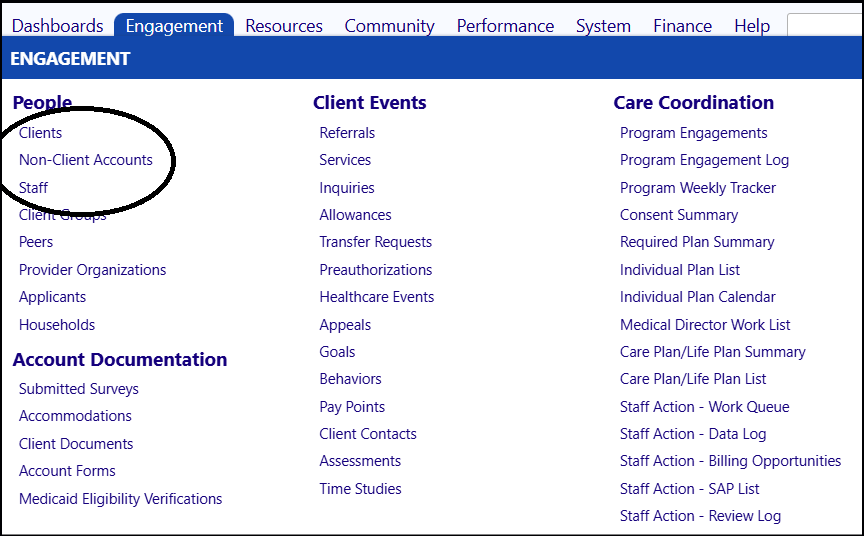
- Select the Account by clicking on their ID (utilize filtering to make it easier to locate the appropriate Client or Staff Member account).
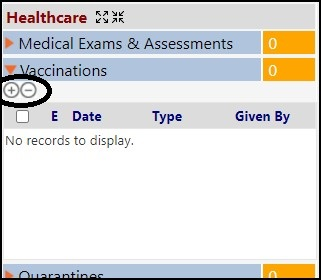
- Expand the Vaccinations panel on the right side of the screen, under Healthcare.
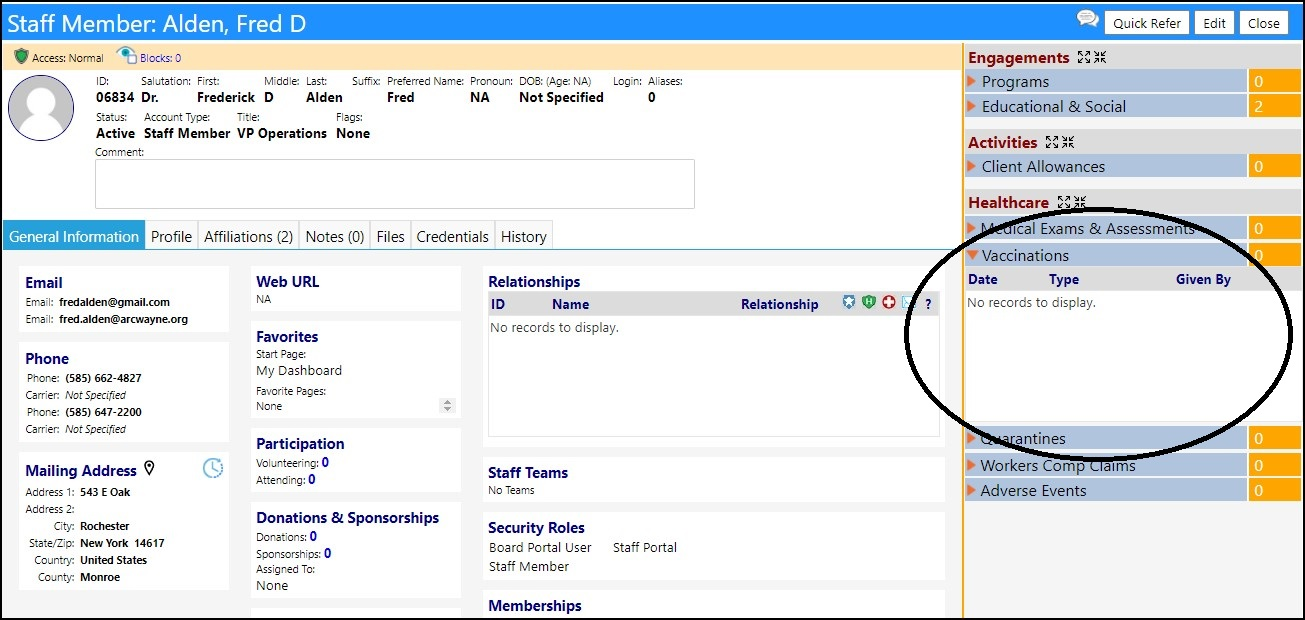
- Click Edit.
- Click '+' to add a Vaccination. (Conversely, select an existing Vaccination and click '-' to remove it.)
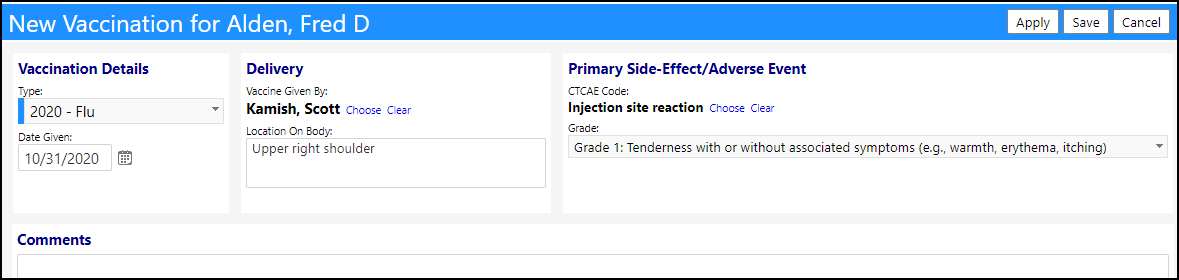
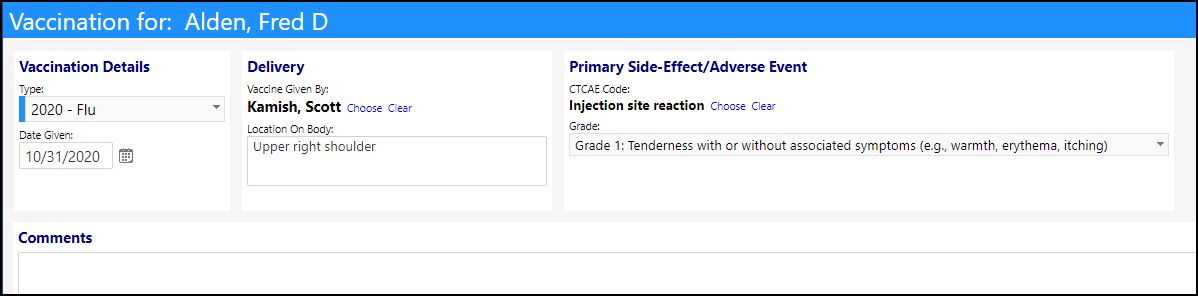
- Enter the Type from the drop-down list, in the Vaccination Details section of the window.
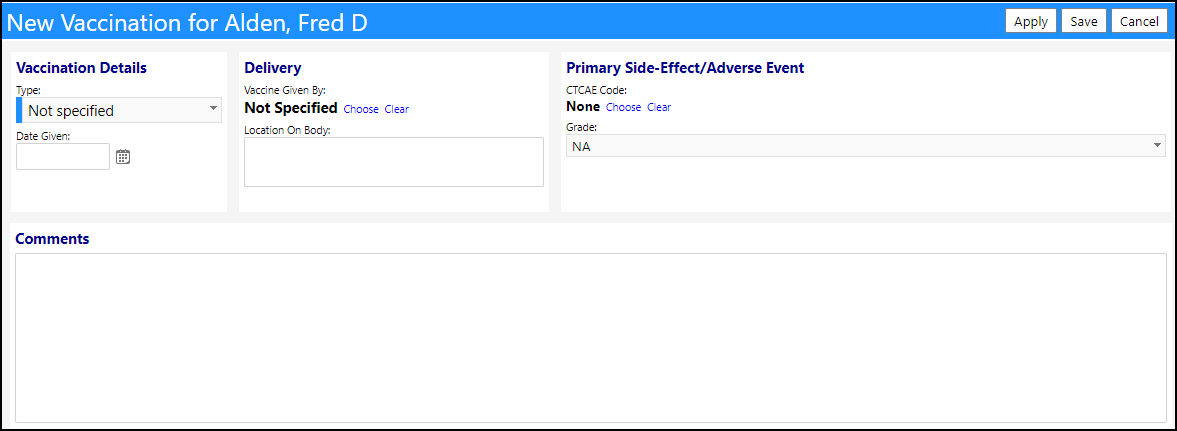
- Enter the Date Given.
- Select who the Vaccine Given By person was, if known, as well as the location on the body.
- Enter any Primary Side-Effect/Adverse Events which may have occurred.
- Click Save.
The documented vaccination will now display in the account profile panel.
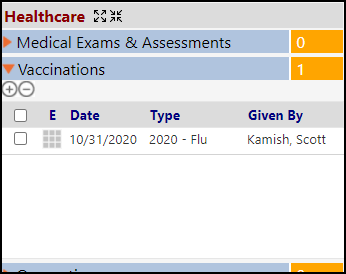
- Click Save to save your account changes.
Viewing the Vaccination Report
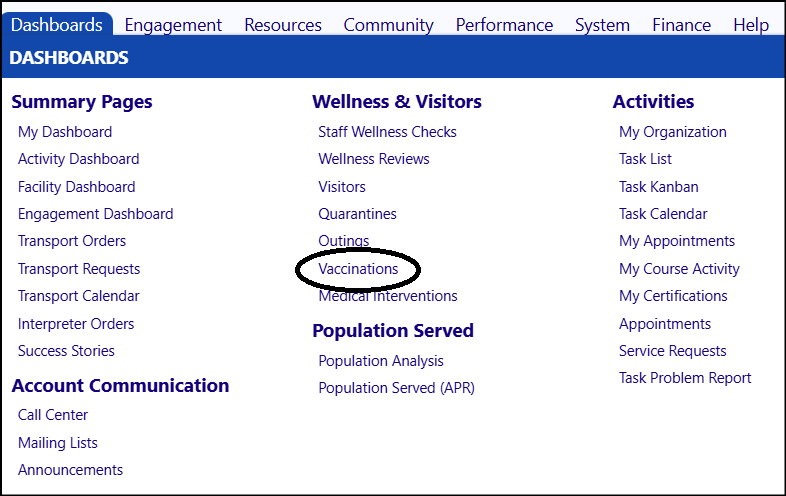
To view the Vaccination Report, click on Vaccinations in the Wellness & Visitors section of the Dashboard menu.
- Select the Vaccine Type, theAccount Type, and whether you wish to view theVaccinated orNot Vaccinated list (select the appropriate tab).
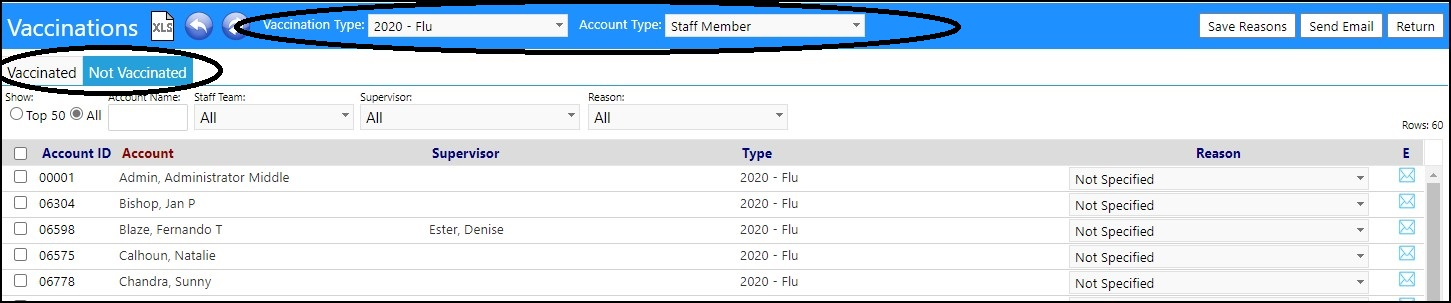
- If you document the reason why someone did not receive a vaccination, you can choose the Reason "Other" and enter a reason. Otherwise, select a reason from the drop-down list.
- Click Save Reasons, to save your entries.

- To view details about the vaccination, when in the Vaccinated tab, click on theirAccountID to be brought to the Vaccination panel in their Account.

The Vaccinations panel in their account profile will display.
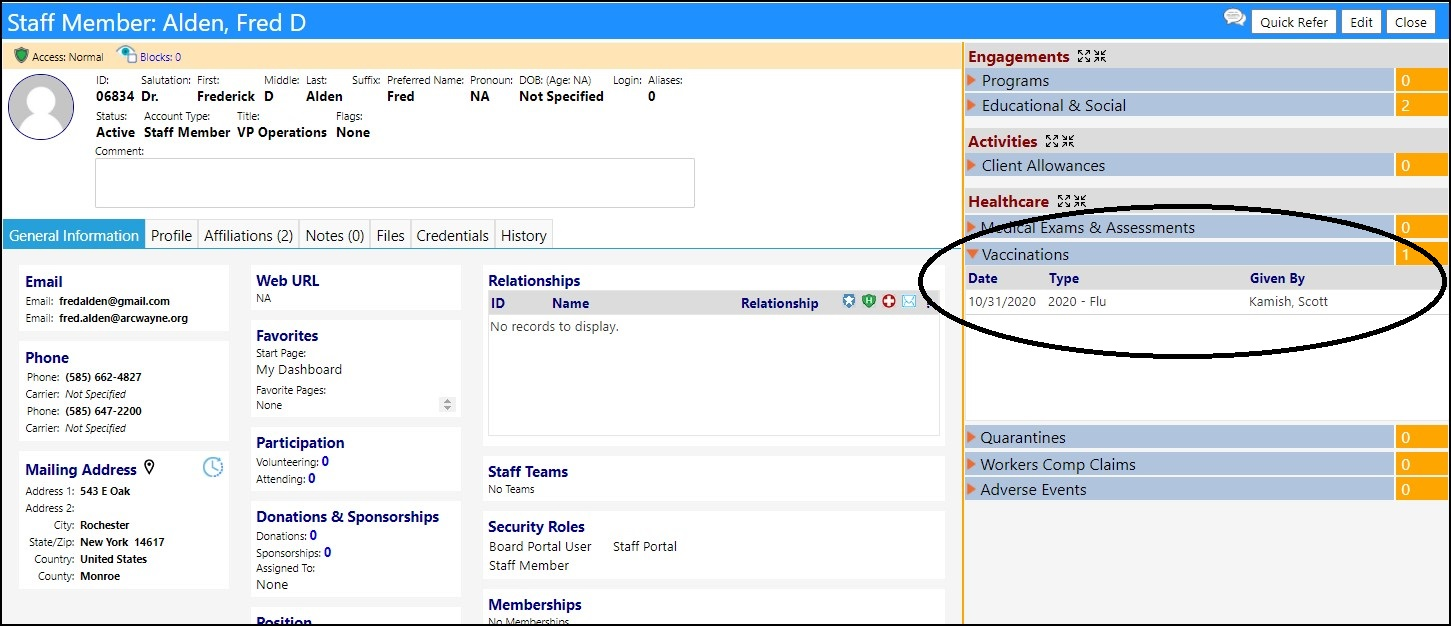
- Click Edit.
- Click the Edit grid to display the details of the vaccination.
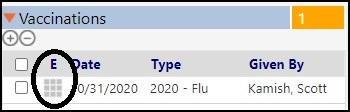
The vaccination details will be displayed.
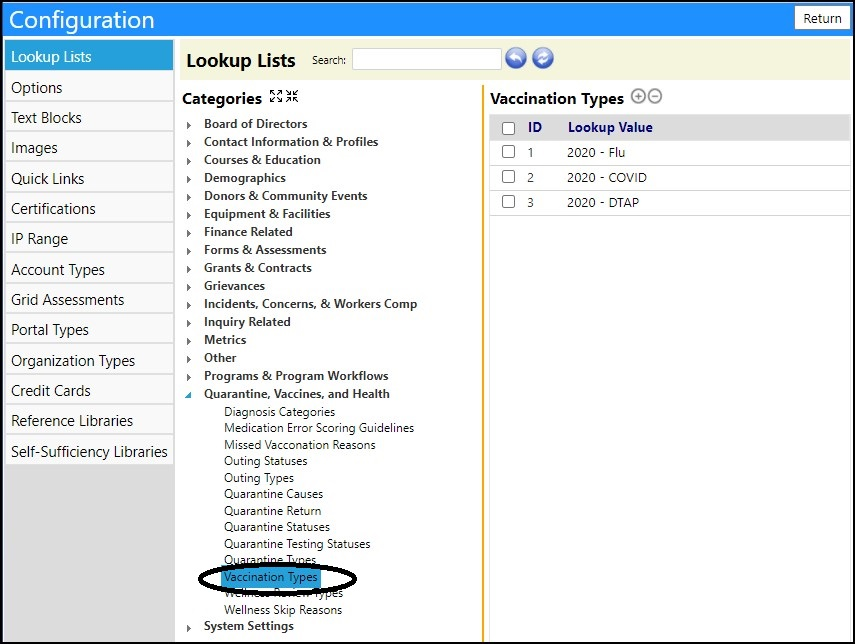
NOTE: the Vaccination Types are configurable in the Lookup Lists section in Configuration.
DISCLAIMER: The characters, names, and events contained in our training documents and in our demonstrations are fictional. Any resemblance or similarity to any actual events, entities, or persons, whether living or dead, is purely coincidental and are purposely made for better visualization of the functionality of our software.