How do I use the Learning Management System once I have added a course
This article will tell you how to use course tracks, create learning goals, and more in the learning management system.
Course Tracks
Course Tracks reflect a grouping of courses which must be completed to reach a specific goal, such as the achievement of required courses for a certification or degree, certification or job retention, etc.
Add a Track
Once a course has been created in the system. The course can be grouped with other courses and used to create a course track. The Course Track is a collection of courses which are used to accomplish a specific goal. Typically, the courses are related to one another such as the courses needed for a new employee to understand how the organization runs and the required regulations they need to know in order for them to safely perform their job. In this example, the courses are all related because they apply to new hires – they may not be the same kind of topic, but there is some kind of relationship such as they are all need to accomplish a certification or to obtain a license or get specific knowledge so a staff member can move to the next level.
Add a Course Track…
- Login to your imPowr website.
- Click on Tracks in theLearning Management section of thePerformance menu and clickAdd New.
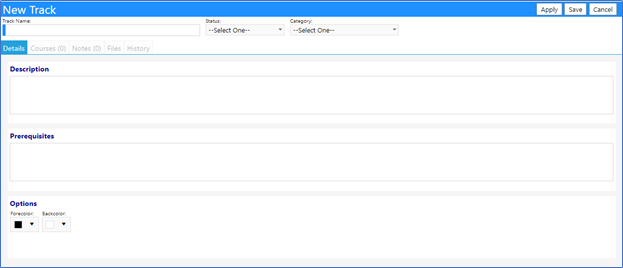
- Enter the Track Name, select astatus, and a
- Enter a Description and anyPrerequisites, as appropriate.
- Click on Apply when completed with your entries.Add Courses to a Track
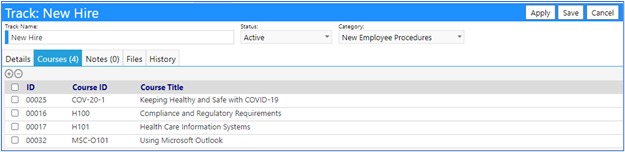
The Courses tab is where Courses are added to the Track.
- Select from the list of available courses (those with the status of either Enrollment Closed,Open to Enrollment, orWaiting List is Open).
- Click on Apply to save the courses.
Add Notes or Files to Tracks
Add any Notes or Files which pertain to this Track, as appropriate, and click on Save to save the Track.
Learning Goals
After Tracks are created, they are assigned to users as a part of an Individual Learning Goal. Learning Goals consist of one or more Courses, Tracks (containing a grouping of related courses), or Credentials that are used to accomplish a certification, credential, or level of knowledge, such as the courses all employees must take as a new hire, or courses someone needs to take to get an educational certification or degree, etc. Like other types of goals, these Learning Goals provide a requirement that the staff member is expected to accomplish, within a specific period of time. Many kinds of goals which can be assigned to a staff member, but for this document, we are only going to address Learning Goals – those tied to learning, which involve educational courses.
There are 2 areas of Learning Goals addressed in the imPowr software: a Learning Goal Library, and Individual Learning Goals.
Learning Goal Library
The Learning Goal Library is a collection of goals that work the same way but were created for anyone to use. An example of these would be ones the courses all new hires must complete within their first 90 days of employment.
Add a New Learning Goal to the Learning Goal Library
- Login to your imPowr website.
- Click on Learning Goal Library in theLearning Management section of thePerformance
When a new Learning Goal is created, it can be created from scratch, or an existing Learning Goal can be selected and copied. Once copied, it can then modify the whatever fields are necessary and save the Learning Goal under a different name.
- Click on Add New.
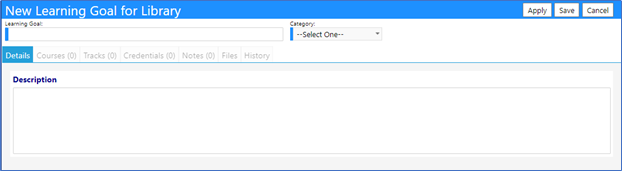
- Enter the Learning Goal and select theCategory and click on
- Enter a Description.
- Click on Apply.
Since this is a specific Learning Goal, Courses can be chosen to be added to that Learning Goal on the Course tab, Tracks can be added on the Tracks tab, and Credentials can be added to the goal on the Credentials tab. If desired, any combination of Courses, Tracks, and Credentials can be added. For example, in order for this Learning Goal to be completed, the staff member must complete track ABC and must pass the state licensing test and achieve the state licensing credential.
For the purposes of this example, we will choose to add a Track.
- Select the Track tab and add the appropriate Track(s).

In addition to the Track being captured, the courses that are part of this Track are displayed in the course list – they are shown as part of the track. If you had also added individual courses, they would have been displayed and “(no track)” would have been displayed.
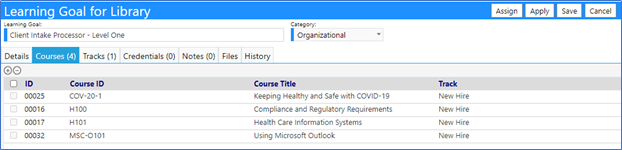
- When you are done adding Tracks, click on Apply.
- Choose to add a Credential, if appropriate.
- Click on Save to save the Learning Goal to the Learning Goal Library.
The Course ID or the Track ID can be clicked to display their details.
Note: With Industry and Professional Credentials, it is highly recommended you click on the Credential ID and fill in the details and requirements to achieve that credential – specifically, adding courses and/or tracks.
The other option, instead of creating a Learning Goal for the Learning Goal Library, is to create an Individual Learning Goal.
Individual Learning Goals
The Individual Learning Goal is created for an individual. It can be copied for someone else and others can be assigned to an identical goal. An example of this kind of goal would be the courses Jane Doe needs to take in order for her to get her state certification.
Add a New Individual Learning Goal to a Staff Member
- Login to your imPowr website.
- Click on Individual Learning Goals in theLearning Management section of thePerformance menu.
When new Individual Learning Goals are added to staff members, users have the option of creating one from scratch, or you can select an existing Learning Goal from the Library, or they can copied from an existing Individual Learning Goal. You can then modify the whatever fields are necessary and save the Learning Goal under a different name.
Create a New Individual Learning Goal
Create from scratch
- Click on Add New
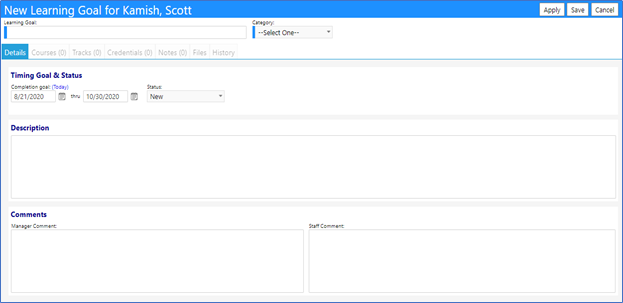
- Select the Account for whom the goal will apply.
- Enter the Learning Goal and select the
-
Enter the Timing Goal for the period of time the staff member has to complete the goal, and theStatus of that goal.
-
The current status choices are:
- Closed (to indicate this goal is no longer applicable)
- Current (to indicate this goal is in progress – typically the goal would be set to this status during a goal review)
- New (to indicate this is a new goal for the staff member).
- Closed (to indicate this goal is no longer applicable)
-
Enter a Description of the goal and add anyComments (typically, comments are added during goal reviews).
- Click on Apply to save the entries.
-
Since this is a new Individual Learning Goal users can choose to enter Courses on the Course tab, Tracks on the Tracks tab, both Courses and Tracks using both tabs, and you can also enter Credentials on the Credentials tab. For example, similar to the goal previously stated, for this goal to be completed, the staff member must complete courses D, G, and H, and must pass the state licensing test and achieve the state licensing credential.
For the purposes of this example, individual courses and a credential will be added to the Learning Goal.
- Select the Course tab and add the appropriate Course(s).
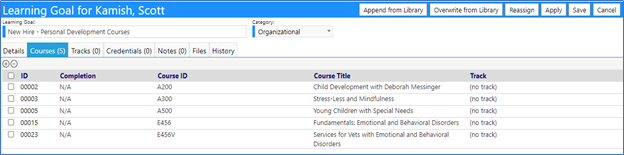
Since these are being added as individual courses, they are being displayed with “(no track)” to indicate they stand on their own and are not tied to a Track.
- To add a Credential, select the Credential tab and add the appropriate Credential(s)
- Click on the Course ID or theCredential ID to see their details.
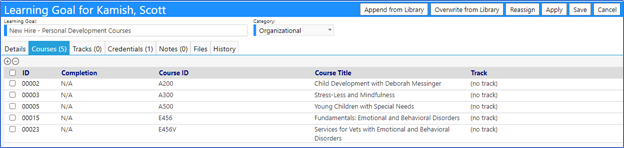
- When done adding Courses and/orCredentials, click on
- Choose to add a Track, if appropriate.
- Click on Apply if work remains to complete the entry of the Learning Goal, otherwise click onSave to save the Individual Learning Goal.
Note: As indicated previously, with Industry and Professional Credentials, it is highly recommended you click on the Credential ID and fill in the details and requirements to achieve that credential – specifically, adding courses and/or tracks.
In the previous example, an Individual Learning Goal was created by adding courses and a credential. Another way to create an Individual Learning Goal is to either Append from Library or Overwrite from Library.
Create a New Individual Learning Goal by Appending a Goal from the Learning Goal Library:
Append from Library copies the Course(s), Track(s), and Credential(s) from the selected goal from the Learning Goal Library, to the Individual Learning Goal. If you already have a goal with Course(s), Track(s), and or Credential(s), this will add additional courses, tracks, or credentials to those you already had. If you already have some of the same courses, it will still add them to your goal. If you had a goal with no Course(s), Track(s), or Credential(s) selection, theAppend from Library will add those to your goal, essentially copying those requirements to your goal.
Create a New Individual Learning Goal by Overwriting a Goal from the Learning Goal Library:
With the Overwrite from Library option, whatever Course(s), Track(s), and Credential(s) you may have had in your Individual Learning Goal will be overwritten with those from the selected Library Learning Goal. If you had no Individual Course(s), Track(s), and Credential(s), Overwrite from Library will cause the Course(s), Track(s), and Credential(s) from the selected Library to be copied over to your goal.
Note: When you copy items over from the Library, either via the Append from Library or theOverwrite from Library method, to delete courses from your goal requires you to see if they are related to a Track. If you remember, the courses in a Track have a relationship to one another. You can delete the items not related to a Track by selecting them and clicking on the ‘-‘ button. But, for those associated with a Track, you have to delete the Track in the Track tab, to Delete the courses tied to that Track.
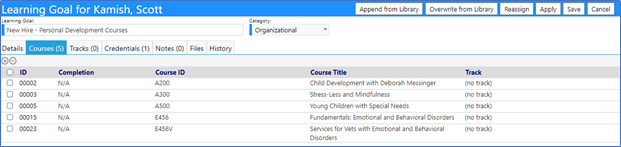
- Just because someone has been assigned to a goal does not mean they have been enrolled in the courses affiliated with that goal.
Create a Learning Goal for One or More Staff Members:
Selecting Create a General Learning Goal from the Group Assignment screen allows the creation of a Learning Goal for one or more staff members.
- Select one or more Accounts to be updated by clicking on the ‘+’.
- Select a Staff Team / Groupto be updated by clicking on the ‘++’.
-
Select whether you want to manually enter the Goal Name or grab one from the Learning Goal Library.
- If manually entered, enter the Learning Goal Name, Start/End Date, and Course Goal Description.
- If entered from the Learning Goal Library enter the Learning Goal Name, Start/End Date, and select the Library Goal Name.
-
Click Proceed with Update.
You will receive a confirmation of the action to take place.
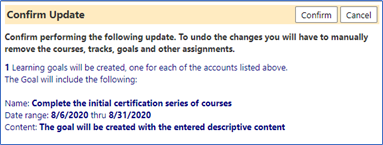
Upon Confirmation, an Individual Learning Goal will be created for that staff member – with no Courses, Tracks, or Credentials.

Group (Bulk) Assignment of Tracks, Credentials and Learning Goals
- Click on Group Assign.
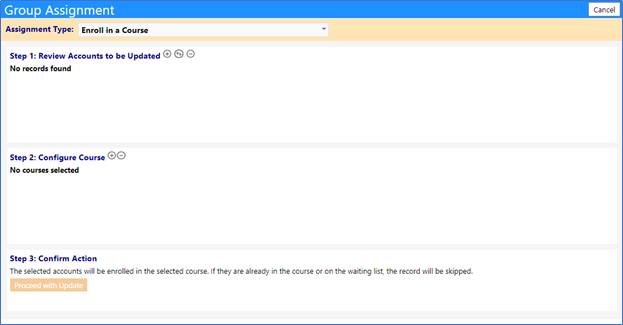
Select the Assignment Type:
- Assign a Credential.
- Enroll in a Course.
- Add to a Course Waiting List.
- Create a Learning Goal for a Course.
- Create a Learning Goal for a Track.
- Create a Learning Goal for a Credential.
- Create a General Learning Goal.
Assign Credential(s) to a One or More Staff Members
This feature allows Credentials to be assigned to one or more persons. For individuals or groups of staff (staff teams), the process is:
- Either identify a single person, select multiple persons, or create a group of staff members.
- Go to the ‘Group Assign’ screen.
- Select the individuals or group and load them to the list of accounts.
- Select the Credential(s) you want to enroll them in (you can now select multiple credentials).
- Click ‘enroll’ and each staff member will be assigned that credential.
- Select one or more Accounts to be updated by clicking on the ‘+’.
- Select a Staff Team / Groupto be updated by clicking on the ‘++’.
- Select the
- Click Proceed with Update.
You will receive a confirmation of the action to take place.
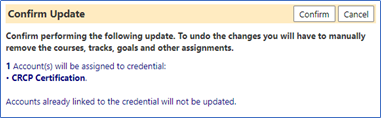
Upon Confirmation, the account will be assigned to the credential and the credential will be added to the Staff Credentials List in the Workflow Section of the Resources menu, with an Active status.

Once the Credential information is updated on the Staff Credentials page (for example, the status is changed to Issued), the Individual Learning Goal Credentials tab will also be updated.

Assign a Learning Goal Containing a Course
Selecting Create a Learning Goal for a Course from the Group Assignment screen allows the creation of a Learning Goal for one or more staff members and adding one or more courses to that Learning Goal.
For individuals or groups of staff (staff teams), the process is:
- Either identify a single person, select multiple persons, or create a group of staff members.
- Go to the ‘Group Assign’ screen.
- Select the individuals or group and load them to the list of accounts.
- Select the courses you want to be added to their goal (you can now select multiple courses).
- Enter the Goal you want which would contain those courses.
- Click ‘Enroll’ and each staff member will be provided with a goal, containing those courses.
- Select one or more Accounts to be updated by clicking on the ‘+’.
- Select a Staff Team / Groupto be updated by clicking on the ‘++’.
- Select the Course(s)for which you want to be added to a new Learning Goal.
- Enter the Goal Name, Start/End Date, and Course Goal Description.
- Click Proceed with Update.
You will receive a confirmation of the action to take place.
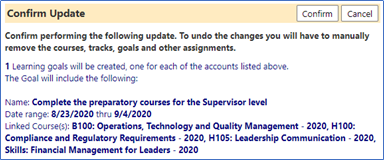
Upon Confirmation, an Individual Learning Goal will be created for that staff member, consisting of the completion goal dates, the entered name, description, and selected courses.

Assign a Learning Goal Containing a Track
Selecting Create a Learning Goal for a Track from the Group Assignment screen allows the creation of a Learning Goal for one or more staff members and adds a Track to that goal, so that when confirmed, the staff member(s) will have a Learning Goal that will contain that Track. For individuals or groups of staff (staff teams), the process is:
- Either identify a single person, select multiple persons, or create a group of staff members.
- Go to the ‘group assign’ screen.
- Select the individuals or group and load them to the list of accounts.
- Select the Tracks you want to be added to their goal (you can now select multiple courses).
- Enter the Goal you want which would contain those Tracks.
- Click ‘enroll’ and each staff member will be provided with a goal, containing those Tracks.
- Select one or more Accounts to be updated by clicking on the ‘+’.
- Select a Staff Team / Groupto be updated by clicking on the ‘++’.
- Select Track for which you want to the Learning Goal to include.
- Enter the Learning Goal Name, Start/End Date, and Course Goal Description.
- Click Proceed with Update.
You will receive a confirmation of the action to take place.
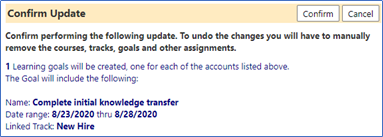
Upon Confirmation, an Individual Learning Goal will be created for that staff member, consisting of the completion goal dates, the entered name, description, and selected Track.

Assign a Learning Goal Containing a Credential
Selecting Create a Learning Goal for a Credential from the Group Assignment screen allows the creation of a Learning Goal for one or more staff members and adds a Credential to that goal, so that when confirmed, the staff member(s) will have a Learning Goal that will contain that Credential. For individuals or groups of staff (staff teams), the process is:
- Either identify a single person, select multiple persons, or create a group of staff members.
- Go to the ‘group assign’ screen.
- Select the individuals or group and load them to the list of accounts.
- Select the Credential you want to be added to their goal.
- Enter the Goal you want which would contain that Credential.
- Click ‘enroll’ and each staff member will be provided with a goal, containing that Credential.
- Select one or more Accounts to be updated by clicking on the ‘+’.
- Select a Staff Team / Groupto be updated by clicking on the ‘++’.
- Select Credential for which you want to the Learning Goal to include.
- Enter the Learning Goal Name, Start/End Date, and Course Goal Description.
- Click Proceed with Update.
You will receive a confirmation of the action to take place.
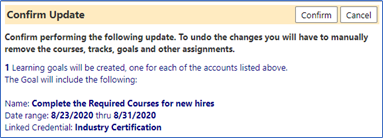
Upon Confirmation, an Individual Learning Goal will be created for that staff member, consisting of the completion goal dates, the entered name, description, and selected Credential.


Note: The Credential does not appear in the Staff Credentials list.
Session Details Page
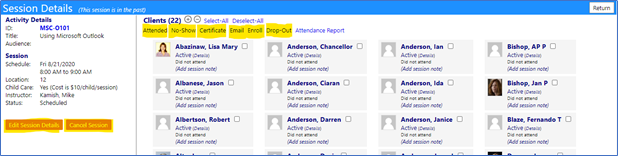
Other features of the Session Details screen (accessed through the Take Attendance button on the imPowr Dashboard) include:
Emailing to One or More Students
- Selecting one or more students and clicking on Email will bring up a word processor where you can email a message to those students.

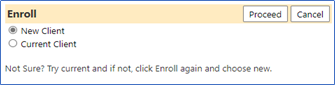
Enrolling One or More Students to an Existing Course
- Selecting one or more students and clicking on Enroll allows you to add (enroll) staff members as new students in the course.
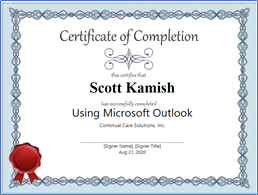
Generating Completion Certifications for One or More Students
- Selecting one or more students and clicking on Certificate allows you to generate Certificates of Completion for your course.
Note: From the Session Details Screen, you can not only take Attendance, but can also edit session details, cancel your session, email students, issue certificates, enroll students, or set their status to Dropped.
Educational Gaps
Even though a staff member has completed a course, that does not mean they have completed their Goal. The Educational Gap page is a tool the staff member’s manager can use to identify those missing courses which still remain to be completed. This Gap report will make it easier to review the progress being made during staff member goal reviews.
- Login to your imPowr website.
- Click on Educational Gaps in theLearning Management section of thePerformance
- Select an account to view.
The Gap report will immediately display all goals, course requirements, the status of the student’s activity in those courses, and the progress towards completion of the goal.
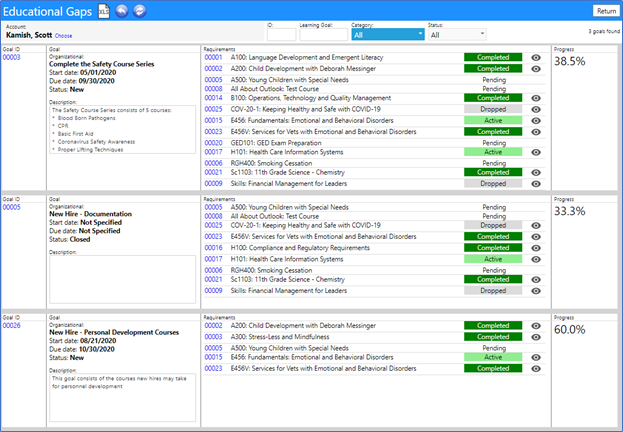
- Click on the number to the left of the course number or click on the eye to view the course details as well as the staff members’ attendance in the course, as well as any Notes the instructor may have entered.
- Click on the Goal ID to review the Learning Goal requirements for that staff member.

Educational Program Schedule
The Educational Program Schedule provides a visual way for an individual to see Course scheduling. It consists of a calendar of Course activity. By clicking on the course, not only will course information be displayed, but so will enrollment status and attendance. If not currently enrolled, an individual can also enroll in the course directly from this page.
- Login to your imPowr website.
- Click on Educational Program Schedule in theLearning Management section of thePerformance menu
- Select a course to view by clicking on its name
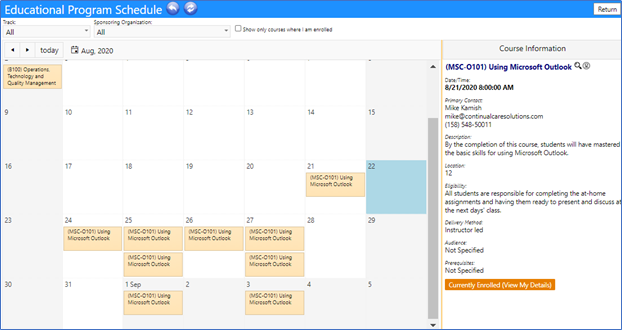
The Course information section displays the overall information about the course.
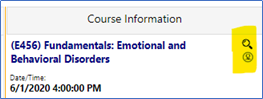
- Click on the View Details icon to see specifics about the course.
- Click on the View Enrollment icon to see the students enrolled.
- Click on Currently Enrolled (View My Details) to see your session attendance as well as any entered Notes.

- If Enroll in Course is displayed, that indicates the course status is Open to Enrollment and when you click on the course, you are immediately enrolled once you click on the Save button.

Capturing the History of Changes Made
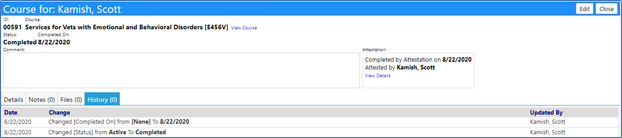
The changes made to the courses are captured in the Audit Trail and Course History.

Document Revision History
Revision #
Date
Author
Description
1.0
8/23/2020
Scott Kamish
Document creation and initial release
1.1
8/24/2020
Scott Kamish
Modified document layout and formatting