How do I set up Staff Members
How do I set up Staff Members?
This article will explain how to set up staff members, for the initial rollouts of imPowr, as well as for current users of imPowr.
For new rollouts of imPowr, the easiest way to set-up staff members is to provide Continual Care Solutions with a spreadsheet of staff members containing the following information (Note: the more information provided, the more that can be loaded into the system for you):
| FIELD | COMMENT |
|---|---|
| First Name | Required |
| Last Name | Required |
| Preferred Name | Optional |
| Login | Optional – if different from the email |
| Title | Required |
| Required. This is the user’s primary email address. | |
| Phone | Optional - format: (xxx) xxx-xxxx or xxxxxxxxxx. This is the users’s main phone number |
| Street Address | Optional |
| City | Optional |
| State | Optional |
| Zip Code | Optional |
| County | Optional |
| Staff Team | Otional |
| Manager First Name | Optional but desired |
| Manager Last Name | Optional but desired |
| Security Role | Optional but desired |
Continual Care Solutions will use your supplied spreadsheet to create a data load and load all of this information into the imPowr instance for you.
You can also add Staff Accounts manually, by clicking on either the New Account Workflow button or accessing the Staff Accounts (Engagement > People > Staff Accounts) and clicking on the Add button.
Note:
You can alternatively select the Non-Client Accounts and choose the Account Type "Staff".
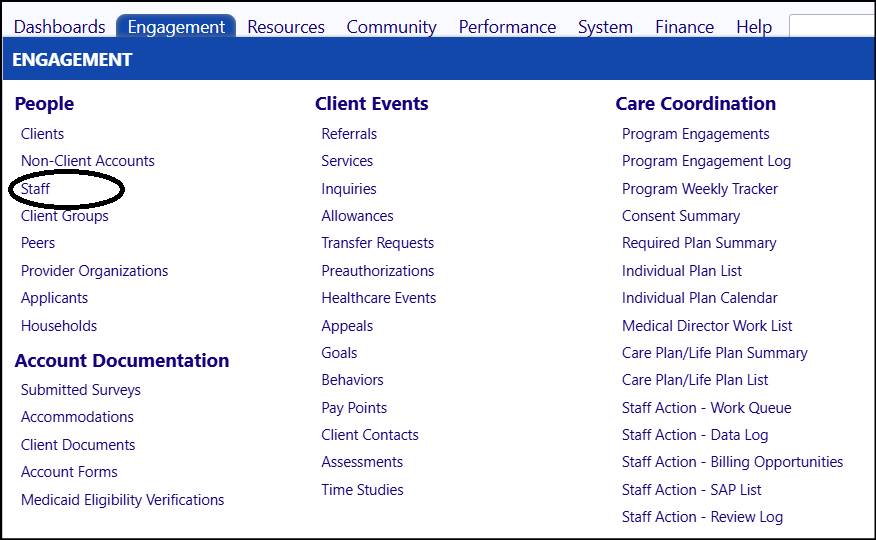
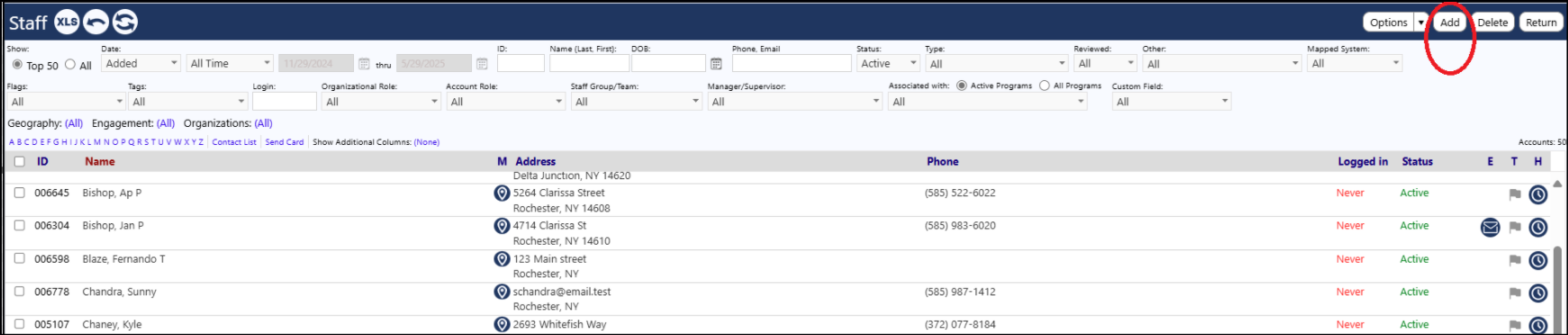
or
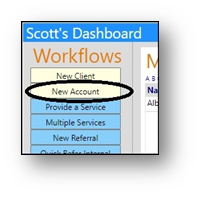
When you add a new Account, the system will first check to see if that account already exists in the system.
- Select the Account Type from the drop-down list.
- Enter the First Name andLast Name of the Account.
Note: Fields with a Blue Bar to their left are required fields.
- Click on Check for Accounts with similar names.
Note: If a similar account is found, you have the option to Inspect that account and Go to (the) Account Record to update it, or you can Create (a) New Account.
- Remember to click Save if you have created a new account or made any changes to an existing account.
Confidential